Video Merger
Video Merger lets you combine 2 to 5 video clips into a single, seamless video. It's commonly used to merge clips generated with Start/End Frame chaining (creating one continuous video longer than a single model's duration limit), but it works with any video clips you want to combine — including footage from outside ZenCreator.
Written By Arina
Last updated 14 days ago
What the tool does
Video Merger takes multiple video clips and stitches them into one final video, applying a transition effect between each clip and giving you control over audio and trimming. It's the second half of the chained workflow used to build longer videos: generate individual clips with Start/End Frame (so each clip flows into the next), then use Video Merger to combine them into one continuous result.
This is ideal for:
combining Start/End Frame chained clips into one long, continuous video
merging separate scenes or shots into a single sequence
creating longer-form content without abrupt cuts between clips
combining footage with consistent transitions and controlled audio
🎬 Results
A look at what Video Merger can produce from a few separate clips.
Your step-by-step guide
Step 1. Video Inputs (2–5) — add the video clips you want to merge. Drag to reorder them; the order you set is the order they'll appear in the final video. The combined length of all clips can be up to 5 minutes. You can trim the start and end of each clip before merging.
Step 2. Transition Effect — applied between every clip in the sequence.
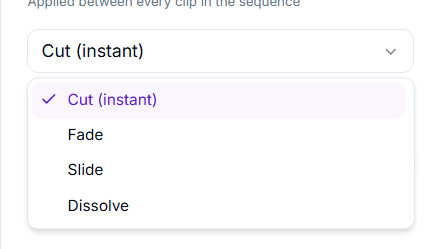
Cut (instant) — switches directly from one clip to the next with no blending. Best for sharp, deliberate scene changes.
Fade — one clip gradually fades out as the next fades in. Smooth and unobtrusive, works well for mood or tone shifts.
Slide — the next clip slides in over the previous one. Adds a dynamic, modern feel between scenes.
Dissolve — clips gradually cross-blend into each other. Softer than a Cut, more gradual than a Fade.
Step 3. Keep Audio — toggle on to preserve the original audio tracks from your source videos. Toggle off if you want the merged video without sound (for example, if you plan to add a different audio track afterward).
Step 4. Run — starts the merge. Cost is shown above the button before you confirm.
Pricing: Video Merger costs 1 credit per merge — a flat rate regardless of how many clips you combine (2–5) or how long the merged video is (up to 5 minutes total).
Pro tips
Using it with Start/End Frame chaining — if you're building a video longer than a single model's duration limit (most models generate 5–10 seconds per clip):
Generate your first clip using a Start/End Frame model (Seedance, Wan 3.0, or MiniMax H3 Max).
Use the last frame of that clip as the Start Frame for your next generation, optionally setting an End Frame to guide where it should end.
Repeat to build out as many clips as you need.
Upload all the clips into Video Merger, in order, and run the merge.
This keeps motion and visual continuity between clips, so the final result plays as one continuous video instead of a series of separate cuts.
Troubleshooting
If a merge doesn't come out as expected, double-check your clip order and transition choice first.
If something didn't work as expected, contact us in the support chat in the app, or email support@zencreator.com.
FAQ
How many videos can I merge at once?
How many videos can I merge at once?
Between 2 and 5 videos per merge.
Is there a maximum length for the merged video?
Is there a maximum length for the merged video?
Yes. The total combined length of all merged clips can be up to 5 minutes.
How much does it cost?
How much does it cost?
1 credit per merge, no matter how many clips or how long the final video is.
Do the videos need to come from ZenCreator?
Do the videos need to come from ZenCreator?
No. You can merge any video files, including footage generated outside ZenCreator, as long as you have between 2 and 5 clips.
Will merging affect video quality?
Will merging affect video quality?
No. Video Merger combines your clips and applies the transition you choose — it doesn't re-render or alter the visual quality of your source videos.
What's the difference between the transition effects?
What's the difference between the transition effects?
Cut switches instantly with no blending, Fade gradually fades one clip into the next, Slide pushes the next clip in over the previous one, and Dissolve cross-blends the clips together. Choose based on how smooth or abrupt you want the transition between scenes to feel.
What happens to the audio if my clips have different audio tracks?
What happens to the audio if my clips have different audio tracks?
If Keep Audio is on, the original audio from each source clip plays during its respective section of the merged video.
Can I trim my clips before merging?
Can I trim my clips before merging?
Yes. You can trim the videos you've uploaded as part of the merge settings.
Is this the same as the Start/End Frame chaining workflow?
Is this the same as the Start/End Frame chaining workflow?
No, but they work together. Start/End Frame chaining is how you generate visually continuous clips one at a time. Video Merger is how you combine those clips (or any other clips) into one final video file.
What's next
Video Upscaler — sharpen and enlarge your final merged video
Was this helpful?
Still need help? Ask the team