Zen Audio
Generate a full audio scene — voices, music, and sound effects — from a single prompt.
Written By Arina
Last updated 14 days ago
What it does
Zen Audio generates voice, music, and sound effects in a single pass from one prompt: describe a whole scene and get back speech, score, and sound effects already mixed together, up to 2 minutes of audio.
You can cast voices two ways:
Text-to-audio — describe the voice in words (gender, age, tone, accent).
Reference-audio voice casting — upload a short reference clip and the model matches its timbre.
Dialogue works in English and Chinese, and multi-speaker scenes give each character a distinct voice within the same generation.
Templates
A few ready-made example prompts to see the tool's range or start from something close to what you need, then edit.
Cartoon (0:21)
Cartoon (0:21)
Inside a seaside cabin, light-hearted and cheerful. Bubbo (cartoon male voice—shrill, high-pitched, heavily nasal, stretchy, voice-cracking, super-fast, energy-bursting exaggerated childlike timbre, similar to SpongeBob) cheers super-excitedly, almost screaming: "Sloggo! Wake up! Today's the Bubble-Catching Contest! I've waited a whole year—la la laaa!" Sloggo (cartoon male voice—low, slow, draggy, nasal, lazy sleepy timbre) says flatly while yawning: "…Bubbles… pop… by themselves…" Bubbo's voice cracks in shock, shrieking: "WHAT?! We gotta catch 'em before they pop!! Go go gooo—!" Sloggo, flat and unmoved: "…Or… wait till next year…" Bubbo whines cutesily, dragging it out: "Sloggo~~ don't be like thaaat~~ I'm gonna cry—waaah!"
Epic battle (1:40)
Epic battle (1:40)
A vast battlefield before a black mountain, thunder rolling overhead, thousands of armored footsteps shaking the earth. Background music: deep war drums, low brass, and a mournful choir rising beneath the clash of steel. Aric (young prince, breathless but brave, fantasy war film style) says, "There are too many. The valley is full of them." Mara (warrior woman, clear fierce voice, steady despite fear) answers, "Then we hold the ridge. If they pass us, the last city burns before dawn." Tobin (young archer, shaky voice, trying to sound strong) whispers, "I can't even see the end of their army." A horn sounds in the distance, harsh and terrible. The enemy roars like a storm breaking. Mara, gripping her sword, "Fear is not shame. Running is." An old captain (rough voice, weary and noble) shouts, "Shields forward! Spears down! Hold until your arms fail, then hold with your bones!" Arrows hiss through the rain. Background music swells: full orchestra, thunderous drums, heroic brass, and soaring choir. Mara raises her sword. "For the living! For the fallen! For the light that still remains!" The army roars and charges.
Romance — Paris (1:39)
Romance — Paris (1:39)
A misty Paris night along the Seine, soft river water lapping throughout, distant footsteps on cobblestones, café laughter fading behind them. Background music: gentle jazz piano, brushed drums, and a soft accordion, romantic, nostalgic, slightly playful. Daniel (young man, dreamy nervous voice, romantic comedy style) says, "Look at the bridges, the lamps, the river… Paris is the only city where history feels like it's walking us home." Claire (young woman, clear witty voice, amused and thoughtful) replies, "Or maybe you're walking history. You quoted Hemingway twice since dessert, and this is still our first real date." Daniel laughs softly. "I hoped literary references counted as charm." Claire, teasing, "They count as effort." A brief silence: only the Seine, the soft jazz, and their slowing footsteps. Daniel, hopeful, "Bookshop tomorrow? Hot chocolate? No tragic novelist comparisons?" Claire slips her hand into his. "One more bridge tonight. Tomorrow, we'll see." Background music rises softly: accordion and piano blending with the river and distant Paris traffic.
Step-by-step guide
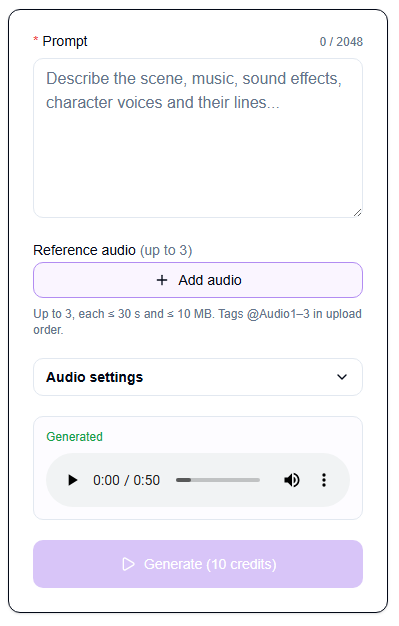
Step 1. Open Zen Audio.
Step 2. Write your prompt. Describe the scene: setting, cast, effects, voice notes, and exact lines (up to 2,048 characters). See the SCENE framework below for how to structure it.
Step 3. Add reference audio (optional). Add up to 3 clips for voice casting — each ≤ 30 seconds and ≤ 10 MB (wav/mp3/pcm/ogg_opus). Reference the clips in your prompt using @Audio1, @Audio2, @Audio3, in upload order. The clip sets the timbre — still describe emotion, tone, and pace in words.
Step 4. Use the AI Assistant (optional). Switch to the AI Assistant tab to:
Describe your scene idea and get a ready-to-use prompt drafted for you.
Ask it to improve an existing prompt — e.g. livelier voices, more atmosphere.
Ask it to build a prompt using your uploaded reference audio.
Step 5. Adjust Audio settings (optional). Expand this panel to fine-tune the output:
Format — output file format (e.g. mp3)
Sample rate — audio sample rate in Hz (e.g. 24000)
Speed — playback speed, default 1.00
Volume — output volume level, default 1.00
Pitch — pitch shift, default 0
Step 6. Generate. Click Generate (10 credits). This isn't a streaming tool — audio arrives all at once, usually after 20–60 seconds.
Step 7. Find your result under the My Generations tab.
The SCENE framework
Structure your prompt around five elements:
Setting — weather, location, acoustics: "After-school hallway, distant footsteps, reverb"
Cast — character actions, appearance: "Shouldering a backpack, waving from the door"
Effects — music mood, genre, SFX: "Deep war drums, low brass, locker 'clack'"
Voice Notes — gender, age, accent, emotion, tone, speed: "Teenage male, American accent, bright and cocky"
Exact Lines — dialogue in quotation marks: "'Hey, Emma, you free Saturday?'"
Want more templates and advanced prompt structures — timestamp control, full multi-voice/ASMR scripting, the sound tag library? Check the Guide tab inside Zen Audio for the full breakdown.
Pro tips
Write long — use most of the character limit; every detail you add informs the environment, the score, and the delivery.
Write sounds out, don't just name them — spell onomatopoeia (a zipper "zzzip", a school bell "ring-a-ling") rather than naming the sound; this is more reliable.
Match the languages — write the prompt itself in the same language as the dialogue.
Reuse reference clips for longer content — for audiobooks or episodic scenes, write scene by scene and reuse the same reference clips across generations to keep the cast consistent.
Keep reference audio CLEAR — Clean recording, Length under 30 seconds, Emotion aligned to the desired delivery, Accent consistent within each clip, Room tone steady across clips.
Every render is unique — the same prompt gives a slightly different performance each time, so it's worth generating more than once if a take isn't quite right.
Troubleshooting
Prompt too long — the limit is 2,048 characters; split long scripts into parts and generate scene by scene.
Output cut off — max output length is 2 minutes (120 seconds) per generation.
Reference audio not being cast correctly — check the clip is ≤ 30s and ≤ 10 MB, and that it's tagged in the prompt (@Audio1, @Audio2, @Audio3) in the same order it was uploaded.
Dialogue in an unsupported language — Zen Audio only speaks English and Chinese; write script lines in one of these two.
Generation feels slow — this isn't a streaming tool; audio typically arrives after 20–60 seconds.
Result doesn't match the prompt — try structuring it with the SCENE framework, be explicit about who speaks when, and spell out sound effects rather than naming them.
Results from AI models can vary and may not always be fully accurate. If you continue to experience issues, contact our support team at support@zencreator.com.
FAQ
How much does a Zen Audio generation cost?
How much does a Zen Audio generation cost?
10 credits per generation, regardless of output length or how many reference clips you use.
What languages can the dialogue be in?
What languages can the dialogue be in?
English and Chinese only. The model doesn't support spoken dialogue in other languages.
How long can a generation be?
How long can a generation be?
Up to 2 minutes (120 seconds) of audio per generation. For longer content, write it scene by scene and generate each part separately, reusing the same reference clips to keep voices consistent.
Do I need reference audio, or can I just describe a voice?
Do I need reference audio, or can I just describe a voice?
Reference audio is optional. You can fully describe a voice in words (gender, age, tone, accent) and skip uploading a clip. Reference audio is there for when you want to match a specific timbre.
Why did I get a different result from the same prompt?
Why did I get a different result from the same prompt?
Every render is unique — the model performs the same prompt slightly differently each time. If a take isn't quite right, try generating again.
Can I create intimate or NSFW audio?
Can I create intimate or NSFW audio?
Yes — Zen Audio supports intimate/ASMR scenes as long as all characters are adults, the scenario is consensual, and the content stays within the platform's Terms of Service.
What's next
LipSync — sync speech to a character's face on video
Pricing & Credits — see credit costs across all tools
Was this helpful?
Still need help? Ask the team