Head & Face Swap
Replace a single face across hundreds of photos in seconds. Upload one source portrait, drop in your target images, and deliver swaps.
Written By Arina
Last updated 14 days ago
What the Head & Face Swap tool does
Head & Face Swap maps eyes, nose, mouth, jawline and skin tone from your source face onto every target image you upload. Lighting, shadows, and resolution are matched automatically, so the result feels native to the scene — no Photoshop skills required.
Best-practice notes
Run Head & Face Swap last. Make Head & Face Swap the final step in your pipeline, so your photos stay consistent and realistic.
🎬 Results
A look at what Head & Face Swap can produce.
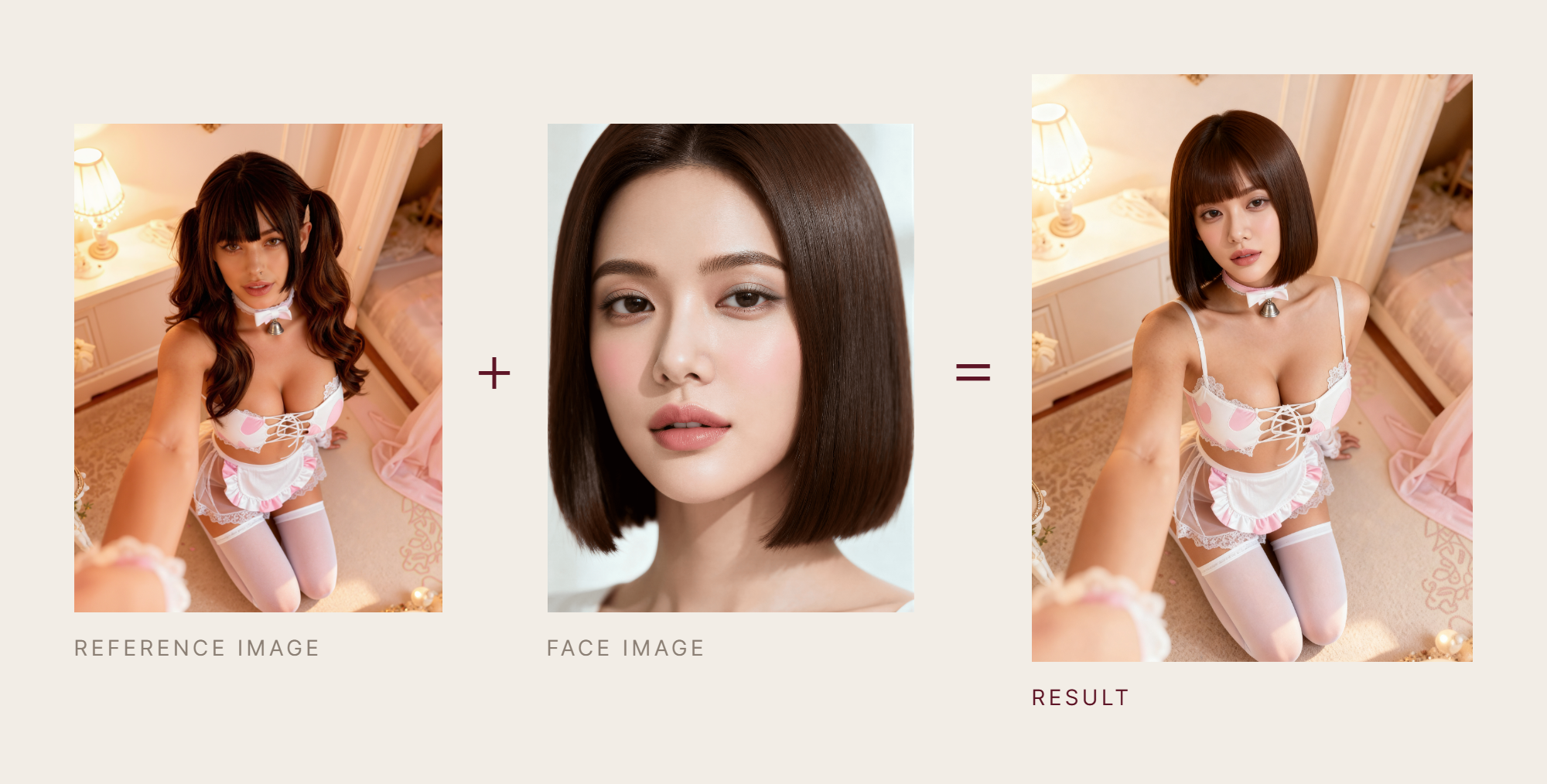
Your step-by-step guide
Step 1. Select Model — use the Model dropdown to choose the face-swapping engine you want to apply. Tap one below to see what it's best at.
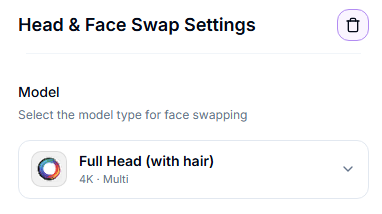
⚠️ Head & Face Swap is available only for users with Trusted Status. If you don't see this tool or some options, it means your account does not have access yet.
All three Head & Face Swap models support SFW and NSFW content, but each one works differently depending on the complexity of the pose and the quality you need.
Full Head & Face (New Beta)
Full Head & Face (New Beta)
Description: combines full head and facial replacement with improved blending between the face and surrounding areas, resulting in more natural transitions and fewer visible seams.
Best for: high-quality influencer content, close-ups with complex lighting, scenes where seamless blending between face, skin, and hair is critical, and when previous models produce visible edges.
Resolution: fixed ~1K output.
Fast — MuleRouter
Fast — MuleRouter
Description: our fastest model yet, built for quick turnaround and optimized purely for speed. Lets you choose face-only or full-head swap in the same model, depending on what the shot needs, with the result delivered as-is.
Best for: quick turnaround, drafts, and high-volume batches where speed matters more than fine polish.
Resolution: fixed 2K output.
Seedream 5 Pro (New)
Seedream 5 Pro (New)
Description: our highest-quality swap model. Choose a Type — Face (keeps the reference's hair, pose, body, clothes, and background), Head (swaps the whole head including hair), or Person (carries the character entirely into the reference's scene). The output aspect ratio always follows the reference.
Best for: the highest-quality result, or when you need full-person swaps, not just face or head.
Resolution: 2K or 1K tier — 2K is larger and more detailed, 1K is faster and cheaper.
Quick pick:
Need the most natural blending with minimal visible seams and fast processing speed → Full Head & Face (New Beta)
Need the fastest result and don't need fine polish → Fast — MuleRouter
Need the highest quality, or a full-person swap (not just face/head) → Seedream 5 Pro
Step 2. Upload Source Face (right-hand panel) — choose a single, well-lit portrait ≥ 512×512 px (recommended). You can upload a face manually or select one of your saved Personas.
Step 3. Upload Target Images — drop one shot or a folder (up to 1000 JPEG/PNG).
Step 4. Select Resolution (optional) — choose 2K output where supported by the selected model (see model details above; some models use a fixed resolution).
Step 5. Start Head & Face Swap — shows the cost and queues the job.
Actions on results
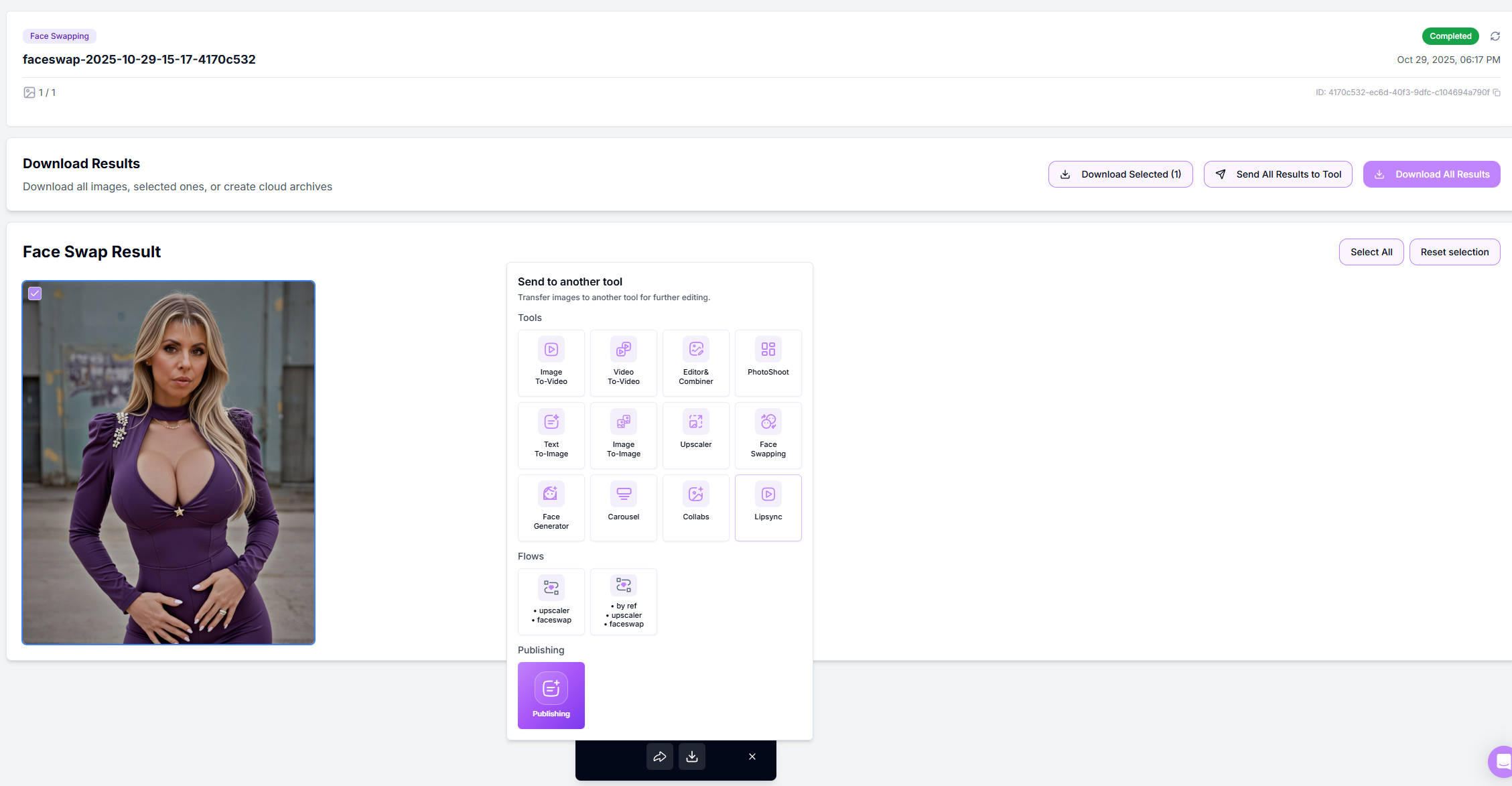
Select / Deselect thumbnails with the corner checkbox.
Download Selected – instant ZIP of chosen images.
Download All – grabs the whole batch.
Send to another tool – push directly into Upscaler, Reference-To-Image, Image to Video, or Variations.
Send to Publishing – instantly transfer selected images into the Publishing tool to prepare posts for Instagram, Facebook, X, or Shorts.
Retry Failed – only appears if at least one swap didn't render.
Pro tips
Quality in = quality out: crisp, frontal source portraits give the cleanest swaps.
Batch smart: group targets by lighting and colour grade for tighter matches.
Lock a persona: reuse the same source face across campaigns to keep an influencer's look consistent.
Troubleshooting
You're working with AI — occasional mistakes or artifacts are normal, and a 100% correct result isn't guaranteed. A small change in the character's pose is also expected.
Blurry or mismatched skin tone → try a higher-resolution source face and ensure similar lighting between source and targets.
Partially completed batch → click Retry Failed; only the missing frames will rerender, no extra credits charged.
Need more help? Ping the chat bubble or email support@zencreator.com.
FAQ
How many images can I process at once?
How many images can I process at once?
Up to 1000 per batch; ZenCreator auto-scales GPUs so queues stay short.
Can I swap several different faces in one photo?
Can I swap several different faces in one photo?
Multi-face mode is in development. For now, run separate batches per face.
Will this overwrite the original files?
Will this overwrite the original files?
No. All swaps are new images stored in your workspace; originals remain untouched.
Do I own the resulting images?
Do I own the resulting images?
Yes. Every output carries a full commercial license.
What's next
Image Upscaler — sharpen and enlarge your result
Reference-To-Image — build variations from this result
Image to Video — animate the final image
Was this helpful?
Still need help? Ask the team