Photoshoot
Spin up a full lifestyle shoot. Upload a face, add a body reference, pick categories and sizes, and get a photo set ready to post.
Written By Arina
Last updated 14 days ago
What the tool does
Photoshoot creates multi-image shoots across selected categories while preserving your subject's identity. You provide a Face Image and a Body Image to nudge the physique. The tool outputs batches of consistent shots in the aspect ratio and size you specify.
Notes
Works for real people and virtual personas. This flow prioritizes face identity retention across categories, so your subject stays recognizably the same throughout the shoot.
Ready-to-publish outputs. Images are delivered already upscaled and resized to the aspect ratio and dimensions you set — no further processing is needed unless you want optional creative tweaks.
🎬 Results
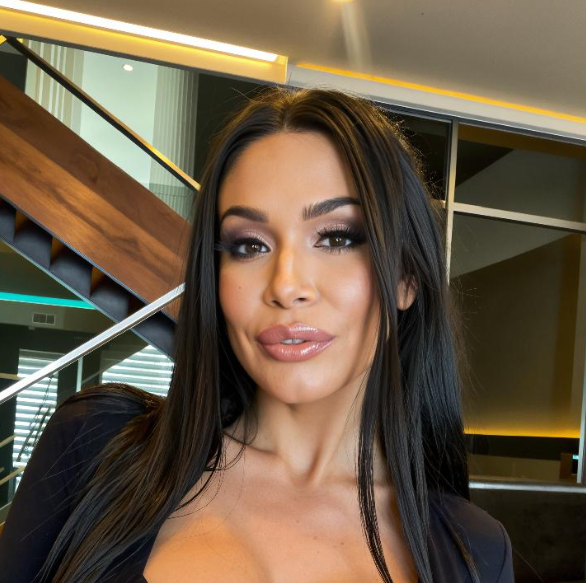
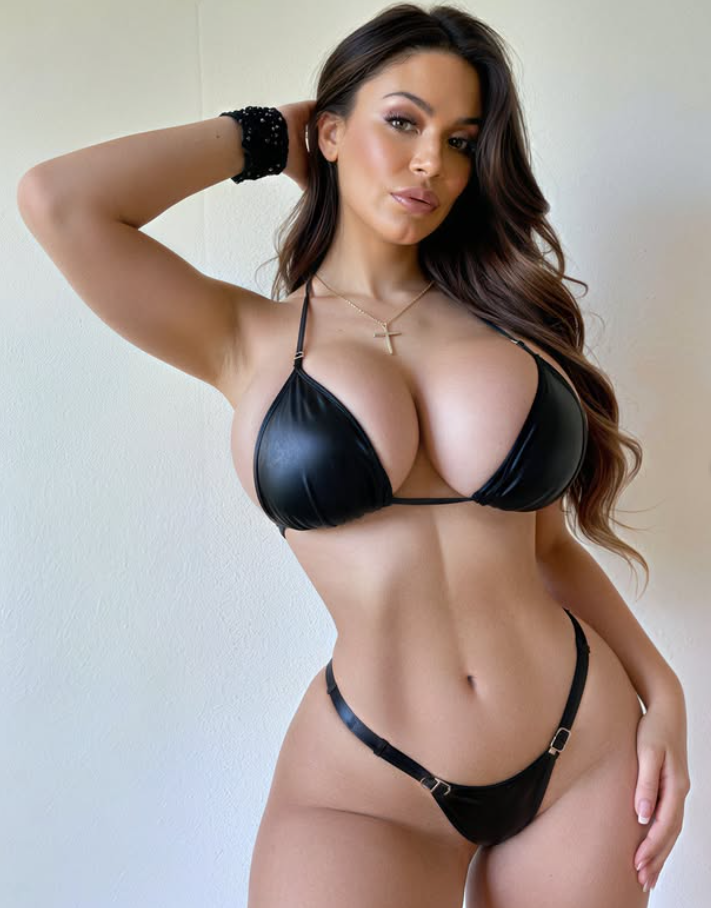
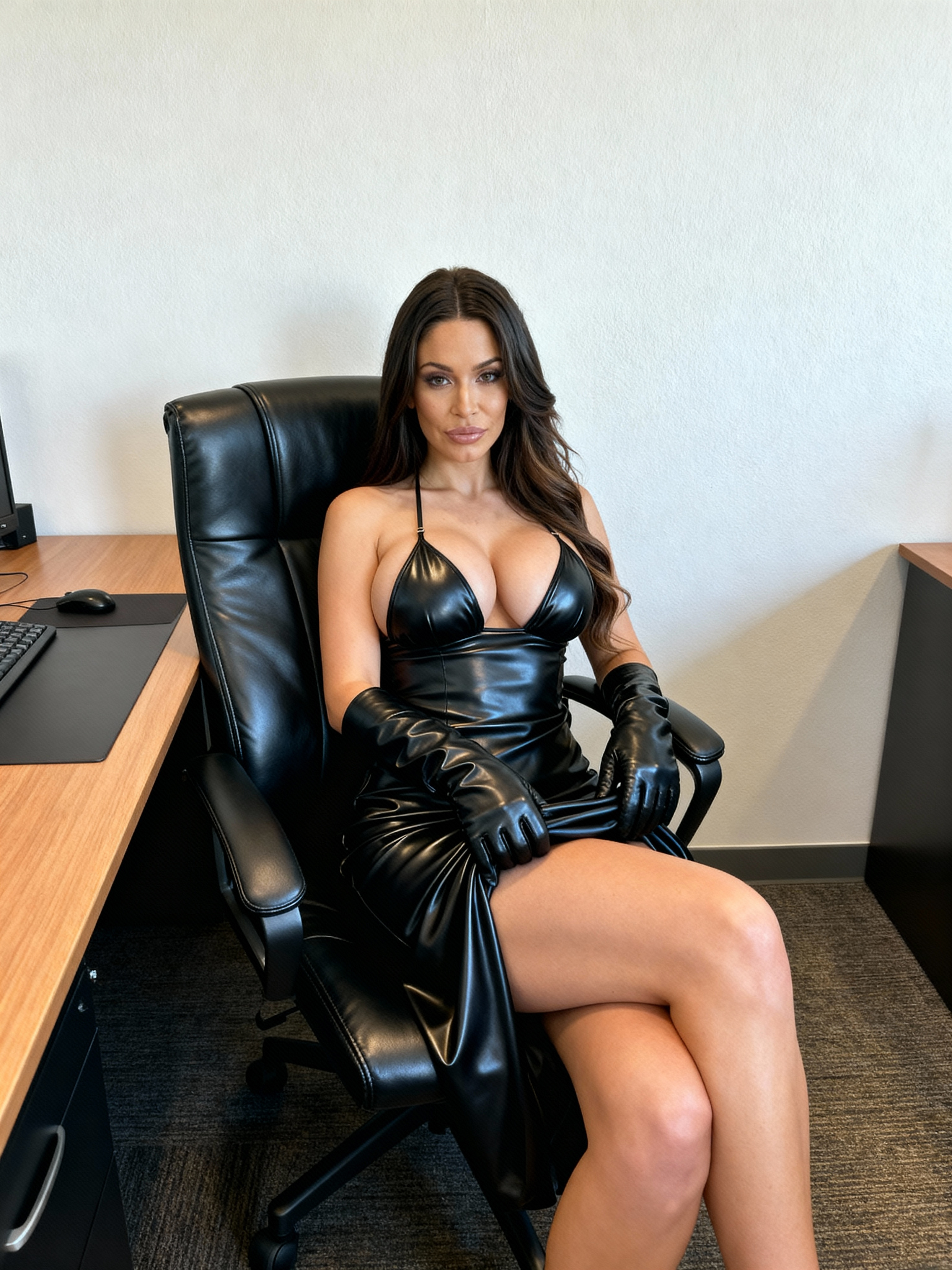
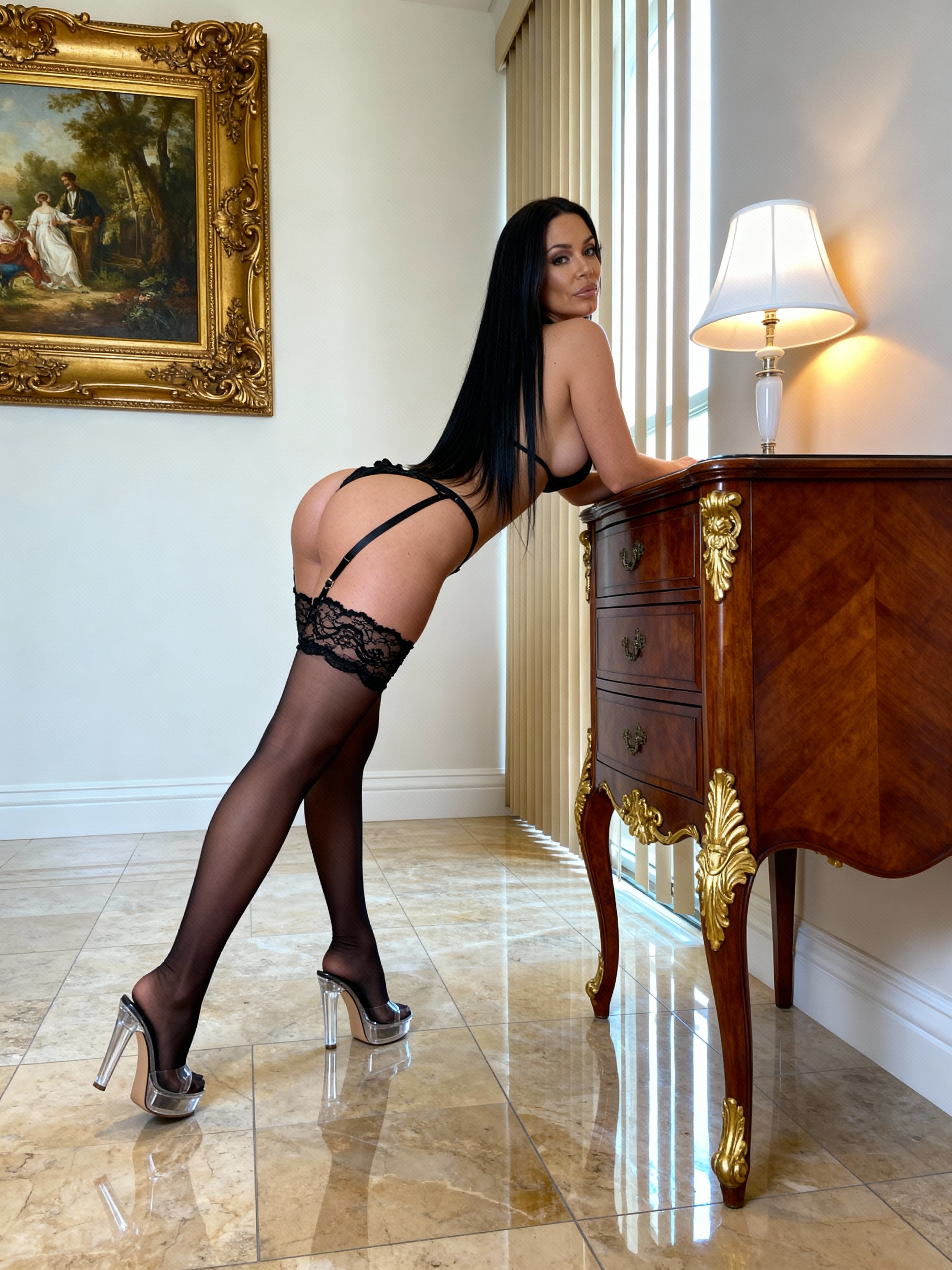
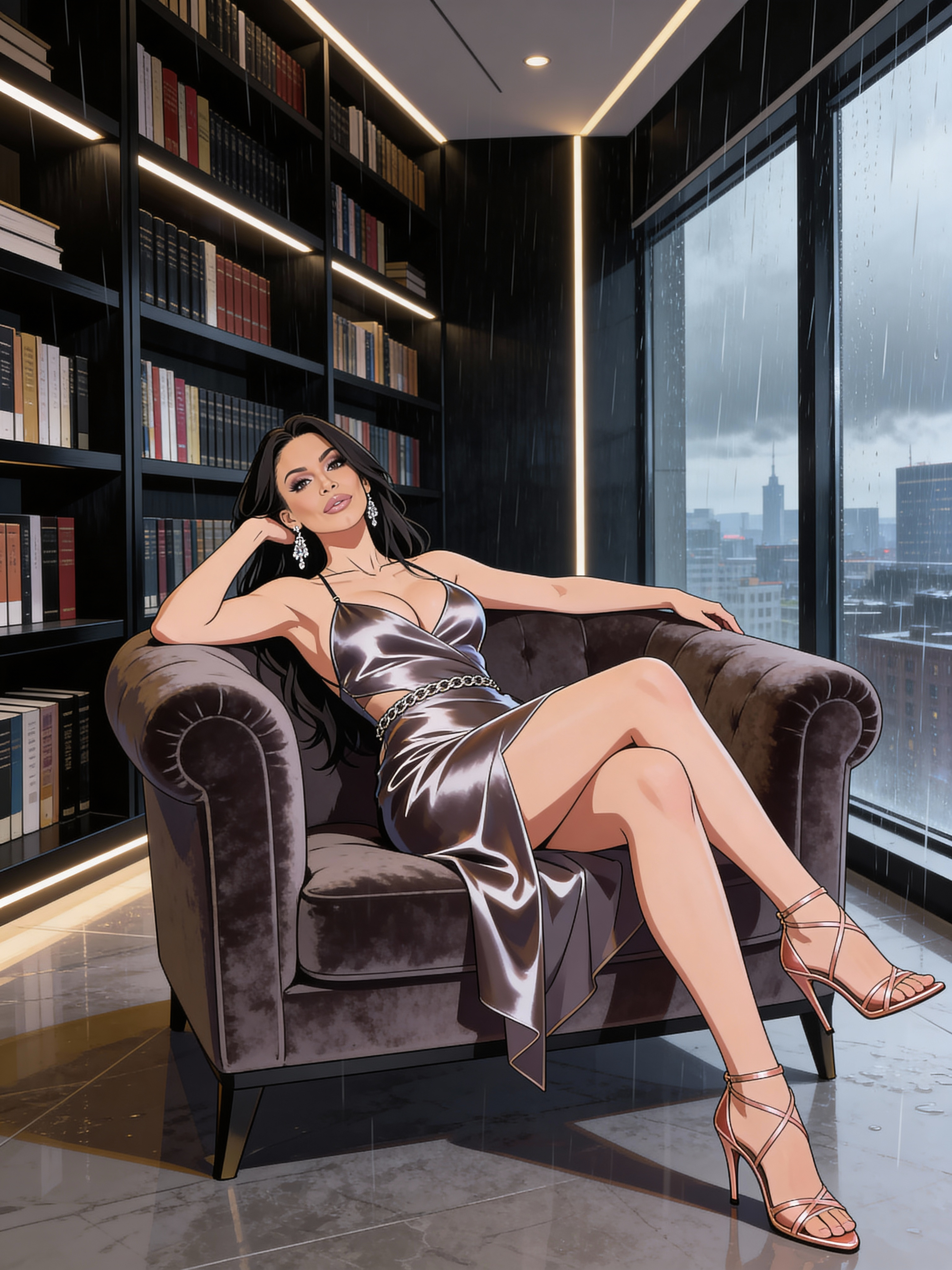
A look at what Photoshoot can produce from a face and body reference.
Your step-by-step guide
Step 1. Upload Face Image — add a single, well-lit portrait (≥512×512). This anchors identity. Or choose from your Personas.
Step 2. Upload Body Image — provide a full/half-body reference to influence framing, outfit and stance.
Step 3. Aspect Ratio — choose your final canvas (e.g., 3:4, 21:9, 1:1, 9:16, etc.).
Step 4. Resize — set target output dimensions (width/height). Great for platform-ready assets.
Step 5. Photoshoot Category — choose Female / Male, then enter how many images to generate per category (e.g., Lingerie – 6, Bikini – 4). The button will show the total count.
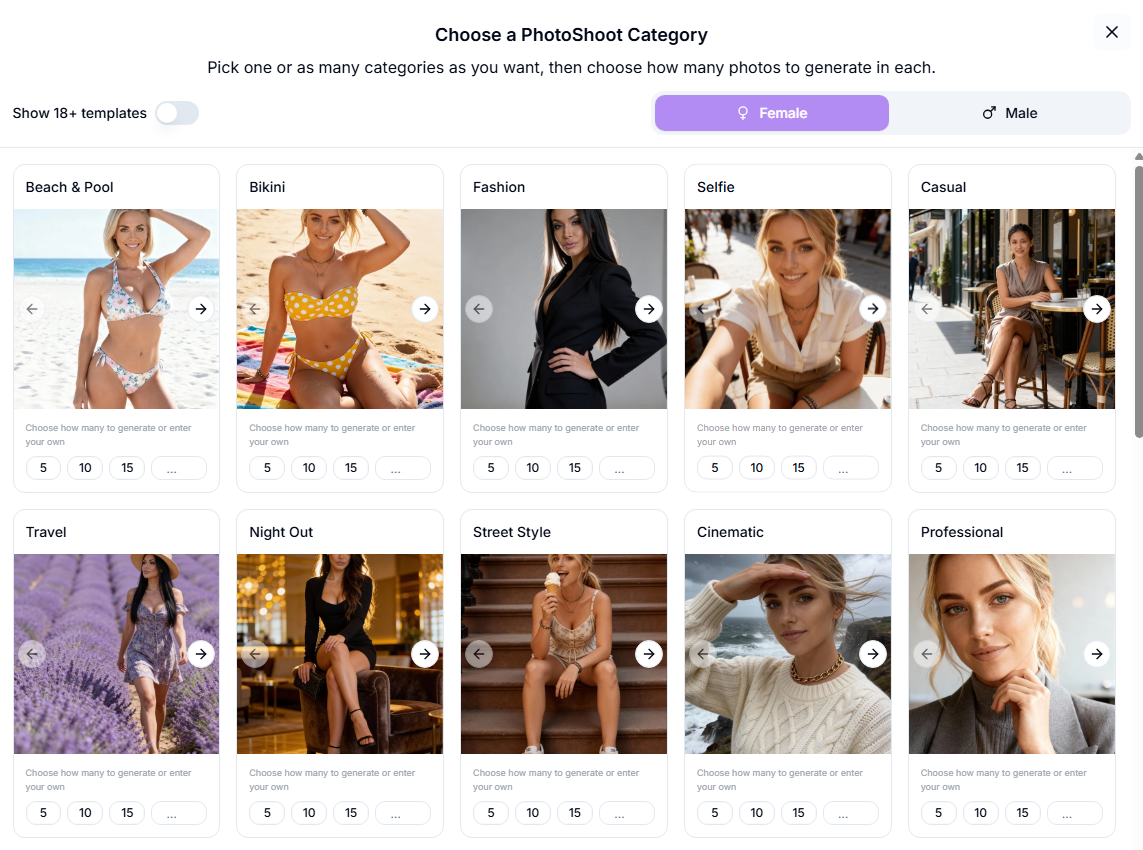
Step 6. Generate Photoshoot — kicks off the batch. Cost is shown near the button (e.g., 3 credits per image).
Actions on results
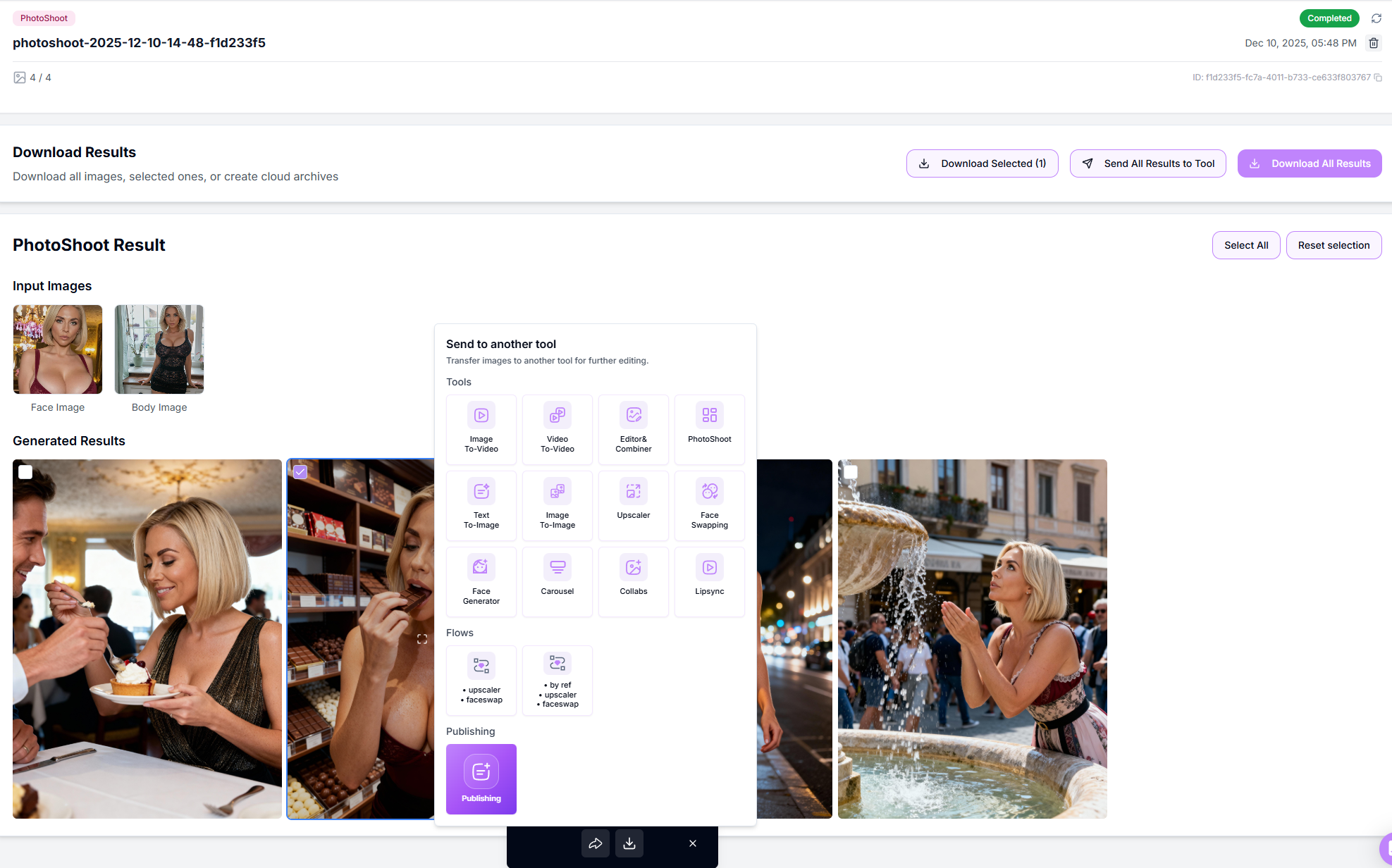
Select thumbnails with the corner checkbox.
Download selected or all images (instant ZIP).
Send it to another tool to continue your pipeline, or directly to Publishing.
Retry Failed appears automatically if anything mis-renders.
Pro tips
Use a sharp, front-facing face image with neutral expression; it generalises best across categories.
Keep your aspect ratio aligned with the destination platform (e.g., 3:4).
Use a body reference image without a face; otherwise, the model may confuse the face in the final image.
For better 18+ results, we recommend using a headless body as the reference image.
Troubleshooting
You're working with AI — occasional mistakes or artifacts are normal, and a 100% correct result isn't guaranteed.
Identity inconsistency across categories → use a higher-quality face image and keep aspect ratio consistent.
Partial completion → click Retry Failed — only missing frames will re-render.
Need help? Tap the chat bubble or email support@zencreator.com.
FAQ
How many images per batch?
How many images per batch?
Up to the sum of category counts you enter (platform supports large batches; credit balance applies).
Do I own the outputs?
Do I own the outputs?
Yes — full commercial licence, no attribution required.
Can I mix portrait/landscape?
Can I mix portrait/landscape?
Pick one aspect ratio per run. For mixed feeds, run separate batches.
What's next
Image Upscaler — sharpen and enlarge your favorites
Head & Face Swap — lock in a consistent face
Image to Video — animate the final image
Was this helpful?
Still need help? Ask the team